Select Version of EA Desktop:
The first row of a grid is the filter row. The filters help to quickly identify subsets of data.
Hover over the cell in the filter row to activate the filter buttons.
To filter using an existing value:
-
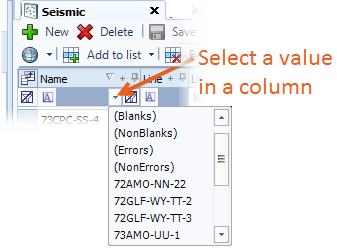
Click the down arrow to display all available values in a column.
-
Select a value from the list. Only rows with the selected value displays in the grid.
Note:Alternatively, set custom filters by typing text in the filter field. The default rule for the filter is contains and will filter for any data that contains the text that you enter.
To change the filter rule:
-
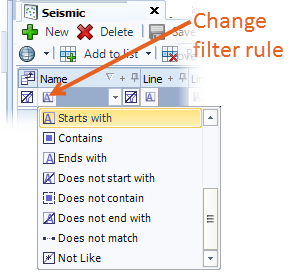
Click the custom filter button at the left side of the field.
-
Select a filter option.
The filter icon changes according to the selected filter rule. -
Type the target text in the field of the first row. Filtering begins as you type.
-
Repeat the steps for additional columns, if required.
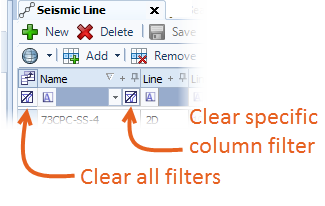
To clear the filters, click the clear filter button for the particular column, or for the entire grid.